
In the Restored 316 Facebook community, someone asked how to add a link to an affiliate disclosure under the post title in the Captivating theme. By default, the theme displays the post categories under the post title.


In the Restored 316 Facebook community, someone asked how to add a link to an affiliate disclosure under the post title in the Captivating theme. By default, the theme displays the post categories under the post title.

In this tutorial, I will show you how to create a category blog page for a WordPress site built on the Genesis framework. The Genesis framework allows you to create category blog pages that, like category archive pages, list posts from specified categories. Unlike Category Archives, however, if you have a Category Blog page, you can display posts from multiple categories on the one page.
Go to Pages > Add New in your WordPress Dashboard. Enter a page title and select the Blog template under "Page Attributes". Add a featured image.

Ensure that the Custom Fields box is enabled in the Screen Options drop-down. Click Screen Options in the upper right of the New Page editor to open the panel and make sure that Custom Fields is selected.


Scroll down to the Custom Fields section and select Enter New.
Enter the following information in the Add New Custom Field section:
To find your categories’ ID numbers, install and activate the Reveal IDs plugin and then go to Posts > Categories in your WordPress dashboard. IDs are listed in the table for each category.
Once you have published your page, it will display posts like you blog archive, but only the categories added, rather than all categories.

In this tutorial, I will show you how to add a landing page to the Fun theme by Pretty Darn Cute Design.
Create a file named landing.php having the following:
You will need to create the file in a plain text editor, such as notepad, textpad, or my favorite code editor, Brackets.
Navigate to your Fun theme folder on your hosting site (via cPanel or FTP), and upload the newly created file.

Create a new page on your site (calling it whatever you want). Assign it the "Landing" template from the "Page Attributes" section in the page editor:

Add your desired content, and then publish the page.
Are you thinking of purchasing the Fun theme, or implementing the Landing Page option on the theme? Want some help? I offer a theme setup service, and theme tweaks. Let's talk!


In this tutorial, I will show you how to Update Portfolio Featured Images in the Pretty Creative Theme. Specifically, how to adjust the gray hover on the featured image.

By default, the featured image in the Portfolio Archives, and in the Portfolio widget on the home page display with a "grayscale" overlay, which then changes to a full color image when you hover over the image.
If you prefer to NOT have the grayscale, look for this in your stylesheet:
Replace it with this:
You can either replace it directly in your stylesheet (Dashboard > Appearance > Editor > Stylesheet), or add it to your "Additional CSS" (Dashboard > Appearance > Customize > Additional CSS).
To remove the grayscale effect, look for this in your stylesheet:
Change it to:
Again, you can either replace it directly in your stylesheet (Dashboard > Appearance > Editor > Stylesheet), or add it to your "Additional CSS" (Dashboard > Appearance > Customize > Additional CSS).

Do you have the Pretty Creative theme, and want to make this update? I'm happy to help - send me a note! I specialize in setting up WordPress websites in under 24 hours!

The title of this post may be a little misleading - I'm not going to show you add to add pagination the the home page of your site, but I am going to demonstrate how to add a link to your blog page so that your home page is linked internally. For a theme with home page widgets, you could customize the loop so that your blogroll automatically displays on your home page, but if you're not looking for that level of customization, and just want to be able to direct your readers to your blog page to continue reading your posts, you can do this by simply adding a link within a widget.
My Happy & Playful theme is so versatile because rather than just displaying a blogroll on the home page, it gives you a series of widgets, so you can choose what posts/categories etc. to present to your visitor when they first come to your site.
But, how do you direct visitors automatically to your blog page so that they can continue to read more blog posts (rather than more posts in the various categories you are displaying on the home page). This can be easily done by adding a link to your blog roll in one of the widgets.
It's not just my theme which does this - I have received questions from people using Pretty Darn Cute's Pretty Chic theme, and Feast Design Company's Foodie Pro theme, so I wanted to share how to do it with you today.
On your site, go to Dashboard > Appearance > Widgets > choose the widget which you want to use to display your blog posts (in my Happy & Playful theme, it's the Home - Middle widget). Drag a text widget (or custom HTML widget) to that location, and add in a link to the URL of your blog page.
On my Happy & Playful theme, I display my five most recent posts on my home page. I have my blog page template set to display five posts per page. For my site, it makes sense to link people to the SECOND page of my blog, to be able to read new posts. Because I want the link to be easy to see, I used a H3 heading to make it larger than a regular link:

Here's how it looks in the text widget:

Here is what you need to add to that text widget (replacing URL with the URL of your site):
Do you need help getting your website or theme up and running? I specialize in website theme setup in under 24 hours, or I can help you with theme tweaks. Send me a note to learn more!

In this tutorial, I will show you how to add an Instagram feed to the bottom of the Novelty theme by Restored 316.
I recently received an enquiry from someone who owns the Novelty theme by Restored 316. She wanted to add an Instagram feed at the bottom of her site, similar to the layout of the Refined theme, also by Restored 316. Today, I want to share a tutorial of how to add an Instagram feed to the bottom of your site. This tutorial will work with other Restored 316 themes which don't currently have this option (you may need to make additional CSS tweaks to meet your needs).
The first thing we need to do is to create ("register") a new widget area. Add this to the bottom of your functions.php file:
Depending on your hosting company, you may be able to add it directly into your functions.php file via your WordPress Dashboard (Dashboard > Appearance > Editor > functions.php), or you may need to use FTP or navigate to your cPanel to edit your functions.php file directly.
As always, anytime you are updating your functions.php file, you need to take care - any kind of miss-step could result in the dreaded "white screen of death". It's for this reason that I always have a fresh download of my functions.php file available, so that I can replace the file if need be.
Next, we need to "hook" the widget (which means to tell the widget where you want it to display). Add this to your functions.php file, immediately below where your newly created widget:
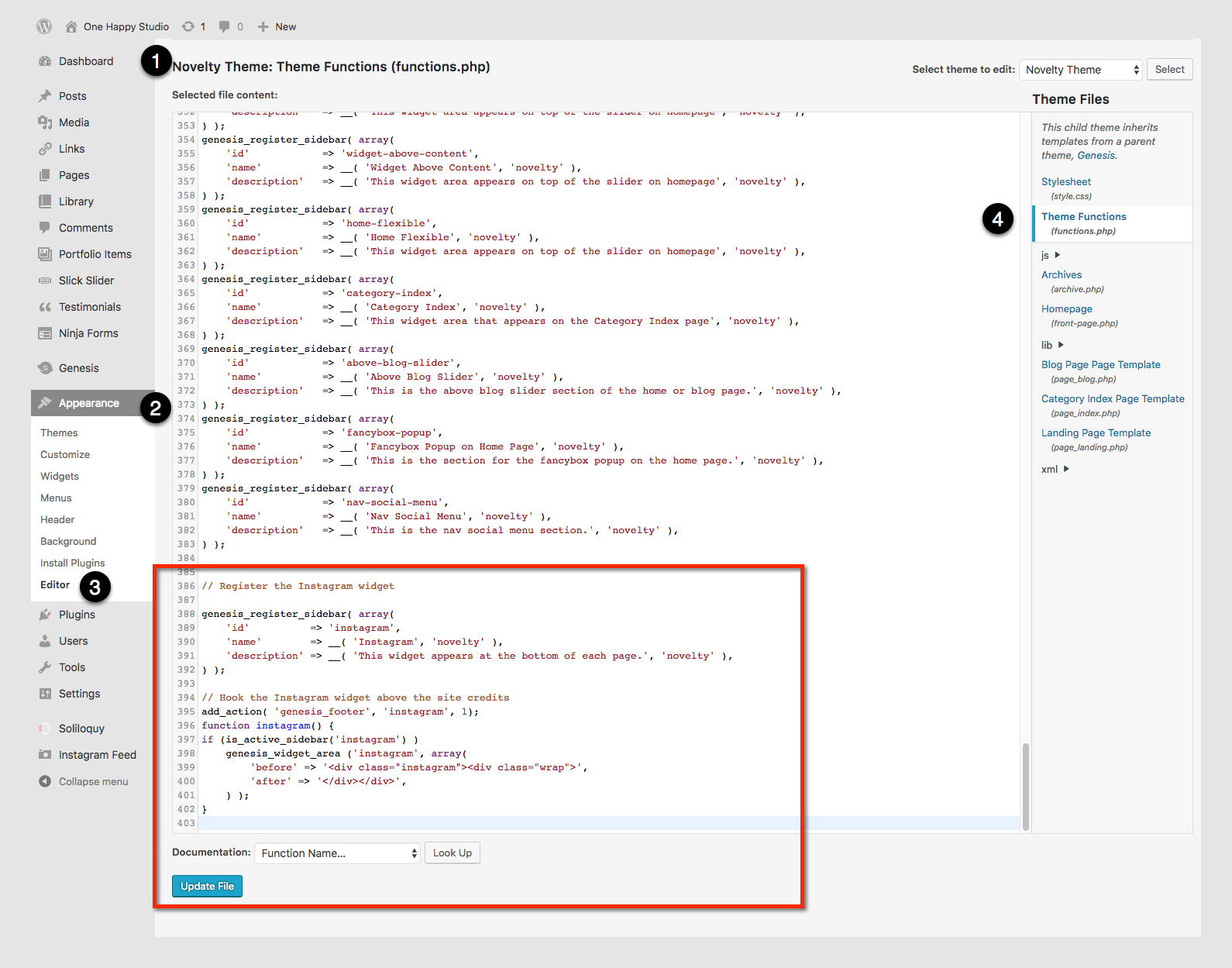
Once you have updated your functions.php file, we'll need to add some CSS styling. You can add this directly to your stylesheet (Dashboard > Appearance > Editor > style.css), but I like to add CSS to my "Additional CSS" section in my Customizer (Dashboard > Appearance > Customize > Additional CSS)
Install and activate the Instagram Feed plugin.
Connect and configure the plugin per the setup instructions.
Go to Dashboard > Appearance > Widgets > drag a Custom HTML widget to your newly created "Instagram" widget area. Add the shortcode [instagram-feed] to the Custom HTML. Click "Done" to publish the widget.


That's it! I'm unable to provide free theme support, but if you have any questions, please leave a comment below, and I'll be happy to help. If you have the Novelty theme, or another Restored 316 theme, and want me to do the work for you, send me a note!
Did you know I offer a theme setup service to get your Restored 316 theme set up to look and function like the demo in under 24 hours?