Dusty loved the Swank theme, but wanted some customizations, including centering the header, and updating the home page widget areas. Dusty was a pleasure to deal with, as she knew exactly what she wanted, and was able to come to the table with a clear vision of how her site should look.
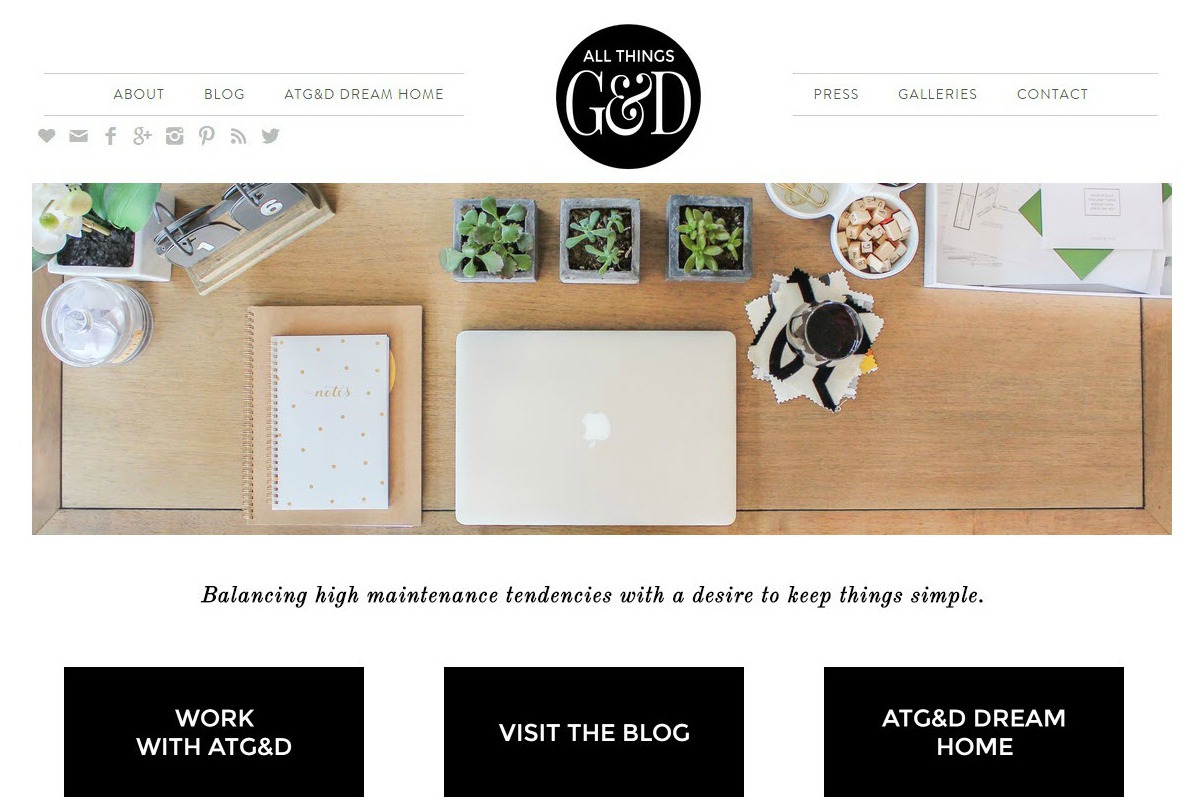
Fun Theme Home Page Widgets
- Home Subscribe Widget: Genesis eNews Extended (the settings for the Genesis eNews Extended will depend on which third party service you are using)
- Left Header Widget: Simple Social Icons plugin
- Right Header Widget: Search widget added to this location
- Primary Navigation: (Dashboard > Appearance > Menus > add your desired menu to the Primary Navigation location)
- Home Top: Genesis Responsive Slider with CSS class of two-thirds first (click to see widget's settings)
- Home Top (cont.) Genesis User Profile with CSS class of one-third (the Genesis User Profile uses an image associated with your Gravatar account)
- Home Top (cont.) Genesis Sandbox Featured Content Widget set to display a featured post. Use a CSS class of one-third (click to see widget's settings)
- Home Products Widget: One Text Widget, plus 9 Genesis Sandbox Featured Content widgets, set to display 9 products. The first widget has a CSS class of one-third first; the next two have one-third. The fourth widget has a CSS class of one-sixth first, and the remaining five widgets have a CSS class of one-sixth (click to see widget's settings)
- Home Blog Posts Featured: One Genesis Sandbox Featured Content widget, set to display three posts (with an offset of one). CSS class of one-third first (click to see widget's settings)
- Home Blog Posts Featured (cont.): One Genesis Sandbox Featured Content widget, set to display most recent post. CSS class of two-thirds. (click to see widget's settings)
Once you have set all your home page widgets, and your featured image sizes, go ahead and run the Regenerate Thumbnails plugin. This will "set" the Featured Image sizes of the Fun theme.
Here are how the widgets are displayed in your dashboard. To access them, go to Dashboard > Appearance > Widgets
Have you purchased the Fun theme, but not yet installed it? Did you know I offer a theme setup service? I can have your site set up to match the theme's demo settings in under 24 hours. You can learn more here: (24 hour theme setup) I'm offering the theme setup for a special price of $74 for a limited time only!

If you've already installed the theme, and just want assistance with making tweaks? I'm available to do that, too!
Just ask here: (talk to Susan!)
Genesis Grid Loop set-up
To set up your Modern Blogger Pro home page like the demo:
- Install and Activate the Genesis Grid Loop plugin (available for download here).
- Go to Dashboard > Genesis > Theme Settings > Content Archives > Display Post Excerpts > Include the Featured Image (home-featured 700 by 400) > Save Settings
- Go to Genesis > Grid Loop > Select your desired location where you would like the Grid Loop to appear
- Then set up your desired number of Featured Posts, and Post Excerpts. Here are the settings from the demo:
- Finally, run the Regenerate Thumbnails plugin.
Add Tags and Categories to the PDCD themes
To add categories and tags into your theme, you will either need to update your functions.php file, or remove one of the existing code snippets, and replace it with one of your own.
Alternatively, you can remove it and use the Simple Edits plugin
In the Fun theme, look for this:
Pretty Chic:
Swank:
Here's the link to the appropriate code snippet:
http://my.studiopress.com/snippets/entry-header/
For a list of the StudioPress Shortcode Reference:
Replace Swank Home Page
The Swank theme displays a widgetized Front/Home Page.

If you wish to display just a blog on your front page, you can rename your home.php file to something else - as discussed in this post.
But, what if you'd like to keep the slider on top of your blog posts on the front page? There are a couple of schools of thought of the best way to do this, but I decided the easiest way was with a modified home.php file.
Add the code below into a file called home.php. FTP to your hosting site, and replace the existing home.php file with this:
If you prefer to have me do this for you, send me a note, and I'd love to help!
How to Remove Footer Widgets from a Specific Page
I recently answered a support question from someone who wanted to remove her footer widgets from two pages on her site, using the Pretty Darn Cute Design "Fun" theme.
My recommendation for someone who doesn't feel comfortable with updating code, is to use the Widget Logic plugin.
If that doesn't meet your needs, you can add a code snippet to your functions.php file.
To target a specific page or post, you need to identify the page or post ID.
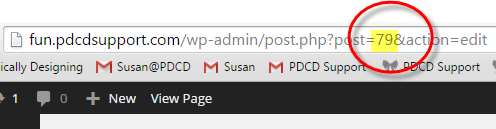
To locate the page ID, open up your desired page, and select "edit". Your page ID is seen as part of the URL:
Then add the page ID to this code snippet (replacing the page ID of 79 seen below). When done, add the code snippet to the bottom of your functions.php file.
Props to Brad Dalton for the guidance.
As always, when making any updates to your functions.php file, have a backup file available, so that you can easily replace your file should your site crash. To remove the Footer Widgets from multiple pages, you can either use the page ID, or page name in this format:
- « Previous Page
- 1
- …
- 12
- 13
- 14
- 15
- 16
- …
- 20
- Next Page »